Monday, 22 March 2021

HOW TO FIX FILE SYSTEM ERROR (-2147219196) IN WINDOWS PHOTO APPLICATION?

While trying to open the pictures through Windows Photo Application, you may have encountered the file system error (-2147219196). In some cases, this may also appear when attempting to open other Windows applications such as a calculator or any other app. The file error only pops up on Windows 10 and prevents you from using certain apps or groups of applications. 

Fix File System Error


This error results from the malware that is within the Windows update. One of the newest updates brings the file system error-2147219196 into the Windows Photo application. Various people encounter this file system error. If you wonder how to fix this error, then here are a few solutions that we have curated for this article. These solutions are effective and are meant to help you fix the problem instantly. 

RESOLVE FILE SYSTEM ERROR -2147219196

Follow these solutions given below to fix the error -2147219196 in Windows 10. You can try one method and if that does not give you the desired results, then move to another. Do that until you get to the point where the error is fixed. 

SOLUTION 1: UPDATE THE PHOTO APPLICATION


The first method or solution that you can try is to update the Photo Application you are using. Sometimes the file system error (-2147219196) occurs because of the older version of the Photos App. You need to check whether there is an update in the Photo App at the Windows store. If available, then follow the steps given below to install the latest Photo App version. 


Initiate by clicking on the start button and then go to the Microsoft store. 

Next, select the ‘see more’ option and go to download and update. 

Then navigate to get updates. 


After installing the latest Windows Photo App version, you need to check if the issue has been fixed. If not, then proceed to the next solution. 

SOLUTION 2: UNINSTALL WINDOWS PHOTO APP AND REINSTALL 

Most of the time, this below method works perfectly for users to fix the file system error. Uninstalling the Windows Photo app and reinstalling it can solve issues. Therefore, it is worth having a try for this one. Below are the steps that will tell you how to uninstall and reinstall the Windows Photo Application to fix the file system error -2147219196. 


First of all, type PowerShell in the Windows start search box. Then right-click on the Windows PowerShell and then select the Run as administrator option.


Now, get the AppxPackage Microsoft.Windows.Photos | Remove-AppxPackage, and press enter key to remove the Photos Application finally. 

Download the Windows Photo Installation package. Then right-click on the file and select Extract files…

Then choose an adequate location and extract the file. Now, type the command prompt in the search box and then open CMD as administrator.  Type or copy paste <PsExec location address>PsExec.exe -sid 

c:\windows\system32\cmd.exe and then press Enter. 


It’s time that you click Agree when the popup windows appear. A new command prompt will show up where you need to type the following command and press the enter key: rd/s“C:\ProgramFiles\WindowsApps\Microsoft.Windows.Photos_2017.37071.16410.0_x64__8wekyb3d8bbwe” You need to press Y when the system asks for confirmation. 


When the operation finishes, open the Microsoft Store and download the Photo app to check if the issue is resolved or not. 

SOLUTION 3: CLEAN BOOT YOUR SYSTEM

You can also try to clean boot your system if the above method did not work to fix the file system error (-2147219196). Follow the steps given below:


First, you need to launch the PC with an Administrator account. Now you will have to press the Windows plus R keys to open the Run window. Then it would be best if you typed msconfig in the Run dialog box and hit the OK key. 

Now, click the services button and unmark the Hide all Microsoft services. After clicking the disable all option, you need to click OK to save the changes.

Next, navigate to Startup and then open the Task Manager. Click the startup button in the task manager and then click all the Enabled status apps. Reboot your system after that. 

Your computer will boot in the clean boot state, and then you will have to open the Windows Photo viewer program to check if the issue has been solved or not. 

Various people encounter this file system error. Referring to the above solution will help you fix the file system error -2147219196. 


Thursday, 18 February 2021

Ways To Make Yourself Administrator In Windows 10


Managing an account on Windows 8, 8.1, and 10 versions can be easily handled. All you need to do is change the rights for one particular account to access the default Windows settings. If you want to access various locations, files, or programs, you need to be an administrator. Moreover, only an administrator can install, remove or modify the protected files and software, which means that Windows 10 and 8 prevent unauthorized users from hindering the settings and internal files. 


If you want to have full control over your Windows 10, 8, and 8.1 versions, then you need first to make yourself an administrator. To know how to make yourself an administrator Windows 10, refer to the methods given below.


How do I make myself an administrator in Windows 10?


To know the ways for Windows 10 how to make yourself administrator, two methods are given below. You need to follow the instructions properly without leaving any step. Make sure that you follow the methods as it is presented to get the desired results.


Method 1: Change your account type


You can try this method for how to make yourself an administrator by following the steps given below. Try not to skip a step. 


·         First of all, log in to your Windows with an Admin account. Then, open your Start screen, and from there, within the search box, type user. 


·         Now, select settings from the results and then pick User accounts. Next, from the User Accounts the main window, select the Change Your Account type option. 

·         After that, check the Administrator box, and then you are done. 


Method 2: Command Prompt


Using the command prompt method, you will know how to make yourself administratorTo do that, follow the steps given below:


·         From your Home Screen, you need to launch the Run box. For that, press Windows plus R keys. Next, type in cmd and press enter. 

·         On the cmd window, type ‘net user administrator / active: yes’ for how to make yourself the administrator in windows 10

·         That is it. On the other hand, if you require changing the settings, you can reverse the operation by entering net user administrator / active: no. 


By following the above methods, you will know how to make yourself an administrator windows 10. If you cannot make yourself administrator using the first method, you can always look up to the second way or solution. 


Wednesday, 17 February 2021

Steps To Fix Kmode Exception Not Handled In Windows 10

 Kmode exception not handled is a system crash that occurs when Kernel Mode Program is causing an exception, which the error handler cannot identify. Usually, there will be an error code 0x0000001E. The system falls into loop reboot.


BSOD (Blue Screen of Death) is a common but bothersome error for Windows users. It can cause the system to crash in different ways. Common BSOD errors include the igdkmd64.sys BSOD error, nvlddmkm.sys blue screen error, and System service exception error. Generally, the BSOD problem appears along with an error code, which helps identify what kind of issue the system is having with the hardware. An error Kmode exception not handled windows 10 frequently appear on the screen which the users report.


Solutions to Resolve the Kmode Exception Not Handled Error


If you find it difficult to fix the Kmode exception not handled the error, check out the below-mentioned solution to stop code Kmode exception not handled error in Windows 10. Follow these effective steps carefully to resolve the issue quickly.


Fix 1: Network Drivers 


Kmode exception not handled error is usually related to your network adapter, and to resolve the issue, it is suggested to update your network adapter drivers. To do that, you need to enter the safe mode and visit your network adapter manufacturer’s website to update the software.

With that, you can also do this from another computer and download the latest drivers for your network adapter, then install them in Safe mode on the faulty device. Suppose updating your drivers does not work or do not have the necessary computer skills to update or fix the drivers manually. In that case, you are suggested to do it automatically by using DriverFix.


Fix 2: Install Missing Drivers


Sometimes the Kmode exception not handled error can also occur due to missing or corrupt drivers. To resolve this issue, you can try installing those missing drivers. If you cannot access Windows 10, you might need to do this process from Safe mode. If that also does not work, then try this:


  • Keep on pressing the F8 or shift plus F8 keys.
  • If the shortcut works, you will see a list of options available.
  • Now choose the safe mode with Networking and wait until your computer starts the Safe mode.

Once you are through with the above steps, you need now to continue with the process of installing missing drivers to fix the Kmode exception not handled:

  • First, you need to press the Windows Key plus X and then choose the Device Manager from the menu.


  • Now, find any unknown devices and right-click them. After that, choose Update driver and then select the Search automatically for updated driver software.


  • If you think that is not working, you may try to Browse my computer for the driver software option.


  • Once you have installed all the missing drivers, exit the Safe mode and check if the issue is resolved.


Fix 3: Rename Problematic File 


Specific software can cause the mentioned Kmode exception not handled or BSOD error on Windows 10. For this particular situation, the error also counts in the problematic file – bdselfpr.sys. This method will help you change the name of the problematic file, which will eventually fix the problem.


Remember that changing the name of these files is not always the best solution because it can lead to even more system instability. If you plan on changing the name of the file that is causing the issue, perform quick research and make sure that you are changing the name of any critical system file.


After following the above methods, you will know how to stop code Kmode exception not handled error in Windows 10. If you find it difficult with one method, then try using another. One of them will indeed resolve the issue you are encountering.

Friday, 1 January 2021

How do you fix Windows 10 plugged in not charging issue?

You might have noticed several instances when you plug your laptop’s power adapter to a power socket but the battery icon doesn’t show charging even when battery is present and functioning properly. You might also receive an error message when you move your mouse over the battery icon located at your taskbar indicating.


“Plugged in not charging” that indicates that there might be some issue either with the battery driver, physical battery, power adapter, etc. Try to identify exact cause of plugged in not charging Windows 10 non removable battery problem.


Quick methods to fix laptop battery not charging problem


  • You can apply any of the following methods to solve such battery charging issues on your system:
  • Uninstall battery driver: Before applying any troubleshooting method to fix any hardware related issue, check whether the problem is caused by corrupted or missing battery driver on Windows 10 system. 
  • There might be some problems with the battery driver installed in your system. In such a case, uninstall it and download again from manufacturer’s official site.
  • There might be some problem with your laptop’s battery or might have faulty power adapter or power socket that can cause such errors on your system. Mainly the battery is causing problem if it has been used since a very long time.


You can also reinstall Microsoft ACPI-Compliant Control Method Battery from the device manager to get out of such issues.


Tuesday, 29 December 2020

Check how to find WiFi password on Windows 10.

Sometimes, there are situations when you forget the password of the WiFi network with which your computer is connected. Whenever you forget your WiFi password for any reason, you need to apply certain methods to retrieve its password. There are several methods that you can apply to find WiFi password windows 10 when your system is already connected to your Wi-Fi network.


Quick methods to retrieve WiFi password in Windows 10

It is quite simple to find your WiFi password on a Windows 10 system, all you need to do is open Windows search bar and type WiFi Settings. Then navigate to Network and Sharing Center and click on your WiFi network name > Wireless Properties > Security > Show characters.

Method 1: Using Your System’s Setting

Follow the steps given below to find the password of a WiFi network connected with your Windows 10:

Right-click the network icon located on the toolbar located at the bottom of your screen and then choose “open network and sharing center” option from the context menu that appeared on your screen.


  • Click on “Change adapter settings” option.
  • Right-click on the WiFi network connected with your system and then click on “status” from the drop-down menu.
  • Choose “Wireless Properties” option from the new pop-up window that appeared on screen.
  • Navigate to the Security tab. Click on the box adjacent to box displaying “show characters.”


Method 2: Using Run Prompt


Rather than applying the above steps to know how to find WiFi password windows 10, you can also use the Run prompt to view the passwords of wireless connection you have saved. For this, you need to apply the following steps:


  • Press the Windows key + R and type ncpa.cpl in the search box and press Enter button.
  • Now, a network connection window will appear on your screen. Choose the Wi-Fi network connected with your system. Right-click on it and then select Status tab.


  • A new window with an option to see the password will appear on the screen. You can easily check the "Show characters" button.


This will display the password of WiFi connected to your system.


Method 3: Using Command Prompt


You can also use the Command Prompt to check Wi-Fi password of your Windows 10 system. Apply the steps given below to apply this method:


Type cmd in the Windows search box and then open command prompt. Choose Run as Administrator to run command prompt with an administrator privileges.

  • Now, an elevated command prompt will open on your screen. Type the following command: netsh wlan show profile. This command will display all the connected devices ever connected to your system.


  • Now, to check the password of any specific network, type the following command: netsh wlan show profile "NETWORK NAME" key=clear, where in place of "NETWORK NAME" you have to enter WiFi network for which you need to check the password.
  • Password will be displayed adjacent to the key content under security settings.


Common problems while connecting your system to WiFi


There are many reasons by which your WiFi connection might stop working. Given below are some common steps that you can apply to solve such connection issues:


Disabled WiFi on your device


Many modern systems are provided with a button that can automatically turns on and off the WiFi from your system as a security feature. First of all, ensure that your Wi-Fi is turned on. You can do so by check any of its button or status light indicator. Usually, there might be either blue or green light when the WiFi is enabled.


Check whether the SSID and security key are correct


If there are multiple networks available for your wireless connections, ensure your system is connecting to the right SSID (router name) and you have entered a correct security key. There are some instances that your system might not connect with the network if you are using your neighbor's router or entering the wrong security key.


Reset modem and router

There might be some issues with your DSL modem, cable modem, or any network router by which such issues can occur on your system and may prevent it from connecting to the network. To check this is not creating problem for you, remove the power cable from the back of the modem and router. After disconnecting it, wait for about 10-15 seconds and then again connect these devices with power. Wait for few minutes and then again connect the modem and router with the Internet and check whether the connection is properly established on your system. If the problems still persist, reboot your computer.


Turn Off Firewalls


You might also face some issues if you have connected more than one software firewall with the computer. To solve such network connection problem, it is recommended to temporarily disable all the firewalls installed on your computer. You can easily disable the Windows Firewall or any Firewall using any third-party applications.

Wednesday, 23 December 2020

Check how to fix can’t factory reset Windows 10 problem

Many users perform factory reset, which is also known as hard reset or a master reset, to bring your system in its original state. Factory resetting basically erases all data and files stored on your system and then revert it back to its original state and manufacturer’s settings. But sometimes, you might face problem while doing so. 


If you can't reset windows 10 and experience any problem while retting your computer, identify the exact cause of your problem and proper methods that you can opt to resolve it.


What can I do if facing problem while factory resetting Windows 10?

There are many ways by which you can initiate a Windows 10 reset process on your system. You can do it from the Windows interface or by entering the Safe Mode. You can also apply following methods to solve this problem:

Method 1: Restore from a system restores point

System restore point can help you to take your computer to an earlier point in time from where you have to install new apps, drivers, or Windows update. This process will not affect any personal files; it will only remove any apps, drivers and updates that were installed on your system after creating restore point. Follow the steps given below to restore from a system restore point:

Right-click on the Start button and select Control Panel from the context menu that appeared on your screen.

  • Type Recovery in the search box of control panel.
  • Click on the Recovery option from search results.


  • Click on Open System Restore option and then click on Next button.

Choose the restore point that is related to the problematic app, driver or update then click on the Next button to finish the restoration process.

Method 2: Go back to your previous Windows version

If you are facing this issue specifically after Windows 10 upgradation, then you can go back to your previous version of Windows within the next 10 days. This will not affect your personal files, but removes apps and drivers installed on your system after system restoration. For this,

  • Go through Start > Settings > Update & Security > Recovery.
  • Click on Reset this PC option.


This will bring your system back to the previous version of Windows and will help you to get out of this mess.


Sunday, 29 November 2020

Check Why is Avast Not Opening on Windows

Avast is one of the most common antivirus applications that provide a solid protection to your system from any external malwares. There are some problems that you may face while using Avast on your device. One of the most common problems that many users usually face is Avast not opening on Windows.


 Sometimes, this situation may occur even without any error message. You must try to identify why Avast won't open on your Windows 10 system and how can you troubleshoot this issue.

Common Causes for Avast Won’t Open Problem on Windows

There are many different reasons due to which you may experience Avast won't open interface windows 10 issue on your system. You must try to identify what is creating problem for you and how it can be resolved at the earliest. Given below are some of the common causes that many users have explained for this issue:

  1.  Broken Avast Installation: The Avast installation file stored on your system might be broken. It can be caused because of any reasons, but luckily, Avast provides you many ways by which you can easily fix this problem. You can perform a clean installation of Avast application or try to fix that bugged file.
  2. Improper Avast Antivirus service: If your Avast antivirus service is not working properly, you will face Avast not opening issue on Windows. There might be some problems with Avast’s main service, in such a case, restart its service and check whether the problem is resolved.

When you identified the cause of this problem, apply some troubleshooting methods to resolve it.


Sunday, 8 November 2020

Learn how to enable Guest account on Windows 10

Guest account is mainly used to provide other people access to use your system to access the internet, run many apps by keeping some of your files, settings, and everything safe and secured. Now Microsoft does not allow you to create Guest account to share your PC. 

It offers you to create a restricted account to emulate such functionality. You can enable Guest account in Windows 10 by using any of the following solutions.

Various methods to create Guest account on Windows 10

There are several methods by which you can create Windows 10 Guest account:

Method 1 –Using Command Prompt

You need to follow the steps given below to create a Guest account on Windows 10. As "Guest" is a reserved account name in Windows, so in the following steps we have used "Visitor."

·         Right-click on the Windows icon from your desktop and select the Command Prompt (Admin) to run the Command Prompt as an administrator.

·         Select the Yes option when a window asking to continue appears on your screen.

·         Type the following command: net user Visitor /add /active:yes, and press the Enter key.

·         Press the Enter key twice when you will be asked to set a password (This will create a blank password for your account).

·         Type: net localgroup users Visitor /delete, and then press the Enter key (This will remove the Visitor user from the default users group).

·         At last, type net localgroup guests Visitor /add to add the Visitor user to the guests group.

Method 2 – Use Computer Management

Computer Management is a Windows application by which you can change various settings and view all important information related to your system. You can also enable or disable Guest account by using this tool. For this, apply the below-given steps:

·         Press Windows + X Key simultaneously, and choose the Computer Management option from the list.

·   Select System tools from the left navigation pane and then select Local Users and Groups option followed by Users.

·         Now, double-click on the Guest folder from the right pane.

·         Once the Guest Properties window opens, check if the default Account is disabled is selected. If it is, uncheck that option and click on the Apply button followed by OK to save changes.

Close the Computer Management window and check if the Windows 10 guest account is created.

Apart from the above methods, you can also create a new user account and change its account type to Guest account from the Settings app.

Thursday, 8 October 2020

How To Fix Windows Was Unable To Format SD Card Issue

When you try to connect an SD card, a USB flash drive, or another memory card to the computer, you may receive a message "You need to format the disk in drive Z: before you can use it." Do you want to format it?" And when you proceed to format your card, you may find that your Windows was unable to complete the format SD card. If your Windows was unable to complete the format, you have to opt for some methods to resolve the issue at the earliest so that your system will not be harm further.

How To Fix Windows Was Unable To Format SD Card Issue

Possible Reasons for Windows Unable to Format SD Card

We must try to identify the possible reasons for why the Windows was unable to complete the format issue. Normally, the following factors lead to Windows was unable to complete the format:

  • Your SD card is Write Protected- If you format your SD card, then it generally performs writing operation. This write protection must be removed before formatting the SD card. To check if your Micro SD card is write-protected or not, you have to copy something to it. If you receive: "The disk is write protected. Remove the write-protection or use another disk" message on your computer screen, then your SD card is write protected, and you need to format it.
  • Your SD card is physically damaged- You can not format your Micro SD card if it is physically damaged. In such a case, you need to change and use another removable disk.

Quick fix for Windows unable to format SD card

While fixing the bad sectors on your SD card or cleaning its space, you need to format your SD card. But an error message indicating "Windows was unable to complete the format SD card" will appear on the screen. To troubleshoot this issue, use any of the following methods:

Method 1: Using Command Prompt

You can use Command Prompt if your Windows unable to format the SD card. Using the command prompt is the simplest way to format a hard drive. For this, follow the steps given below:

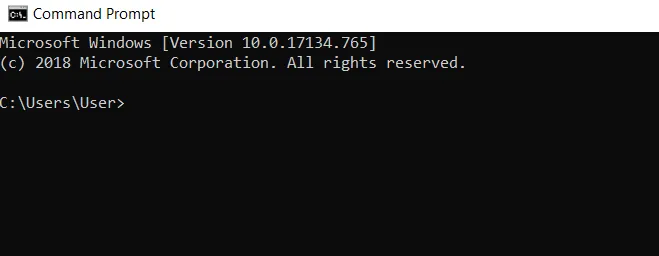
  • Type cmd in the search box of your desktop and then open Command Prompt.
Using Command Prompt
  • Now, type the following command: format C: /fs:ntfs and then press the enter button. (here "C" is the drive to be formatted, and "ntfs" is the file system).
Using Command Prompt

For example, the driver you need to format is drive "J" and the file system you want to have on the drive is "FAT32". Therefore, you need to enter the following command in the cmd window: format J: /fs:FAT32.

Method 2: Using Disk Management

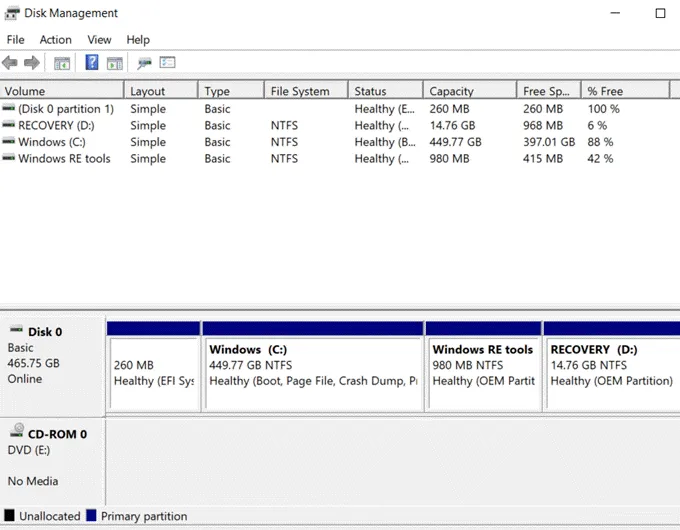
The Windows unable to format SD card issue can be resolved by using Disk Management. This program will help you in managing the different drives on your computer.

  • Right-click on the Windows icon on the bottom left corner of the screen.
  • Now, click on the disk management option to open it.
Using Disk Management
  • Select the drive for which you received the "Windows was unable to complete the format" error message. Then right-click and choose the Format option.
Using Disk Management

If your Windows are still unable to format the Micro SD card, then you can use any third-party application to resolve the issue. You need to download and install the latest version of such applications to fix the issue.

Monday, 21 September 2020

How to Fix Unidentified Network No Internet Access Errors in Windows 10?

There is no need to panic if you are getting an unidentified network no internet access error after installing the latest Windows 10 updates. Many factors such as corrupted, outdated, or incompatible Network adapter drivers, hardware issues, incorrect network configuration, and network account issues etc. cause this problem.

What are the causes of the Unidentified Network Problem on Windows 10?

Many factors are affecting the unidentified network no internet access windows 10. Given below are some of the major causes:

  • Wrong IP configuration: When you connect your system to the network, it is assigned an address known as IP address. If your IP address configuration is incorrect for any reason, it can cause the Unidentified Network issue.
Wrong IP configuration


  • Network settings: The settings of your network on you are also responsible for unidentified network errors.

  • Third-party software: Third-party applications such as antivirus, which you are using on your system, can also cause the No internet access issue.

How to Fix Network Errors in Windows 10?

As there are many different causes for this error to occur, there is no specific way to fix it. Given below are some of the methods to troubleshoot unidentified network no internet windows 10 issues:

  • Disable Security software: It is one of the very simple methods to resolve unidentified network issues. Temporarily turn off all the security software such as firewalls, antivirus software, etc. present in your system. As more and more third-party apps offer network protection, these apps may interfere with your settings and mess something up.
Disable Security software


  • Restart your modem and router: If you are using any wireless medium such as router or modem to access the internet, you must restart them to make sure that they are not causing issues with your network. These devices may also face some problems if left running for a long time without any restarts. Power cycling your router can help you to fix the unidentified network issue.
Restart Modem


  • Turn off and then on Network Adapter: Press the Windows key + R and then type ncpa.cpl command followed by the enter key to restart the Network adapter. Disable the currently active network adapter by right-clicking on it. Please turn on the wireless adapter again after turning it off by right-clicking on the adapter and then select Enable. At last, reboot your PC and try to connect to your wireless network.
Turn off and then on Network Adapter


  • Use Network Troubleshooter: You can also use Windows 10 inbuilt troubleshooter to check and fix network and internet connection issues. By running the troubleshooter, your system’s window will automatically identify the issue and will try to fix it.
Turn off and then on Network Adapter


 These are some most effective solutions that will help you to fix unidentified network no internet access on Windows 10 computers. Simply follow the above mentioned techniques to fix No Internet Access error issue and make your PC normal.


Thursday, 17 September 2020

Ways to Fix Issue of File Explorer Keeps Crashing in Windows 10.

The file explorer tool is one of the most used functions in the Windows OS, and hence file explorer keeps crashing is also one of the common issues faced by users. Before moving ahead to the solution for the case of Windows 10 file explorer keeps crashing, know what exactly is 'File Explorer'? It is the built-in file manager application on Windows and is originally called as Windows Explorer.


File Explorer Keeps Crashing in Windows 10

It is also one of the frequently used applications on the PC and hence file explorer keeps crashing. In case you're also facing the same issue, then stay calm as there are numerous ways to resolve the issue of file explorer keeps crashing windows 10.


Mentioned below are Two Ways to Fix the Issue of File Explorer Keeps Crashing

  1. Change Display Settings
  2. Clear File Explorer's History

Steps to Change Display Settings to Resolve Windows 10 Keeps Crashing Issue

At times, the file explorer keeps crashing in Windows 10 when the users change the text's size, apps, and other items on their PC. Below are the steps to change the display setting in order to get rid of file explorer crashing issue.

  • Tap on the Start button and enter Display
  • Now, visit 'Change display settings' on the list
Change Display Settings


  • Navigate yourself to 'Scale & layout' section in the 'Settings' window
  • Now, select the size to be 100% or 200% if available as it is the recommended size

Steps to Clear File Explorer’s History to Resolve Windows 10 Keeps Crashing Issue

It is still unclear how the users have rectified the issue of file explorer keeps crashing by clearing their history. So, below are the steps for the same.

  • Tap on the 'Start' button and enter 'File Explorer'
  • Click on the 'File Explorer Options' in the results
  • Click on 'Clear' in the 'Privacy' section and the whole process will be completed in a few seconds
Clear File Explorer's History


Know Common Causes of File Explorer Crashing in Windows 10

We all know every error comes with a cause, and there are numerous factors which make the issue of file explorer keeps crashing crop out often. Some of the grounds for the same are:

  • Permission issues
  • Incompatible 3rd party software
  • Improper system settings
  • Other hidden reasons

Know Common Symptoms of File Explorer Crashing in Windows 10

Below are some of the common causes of Windows 10 file explorer keeps crashing:

  • Windows 10 file explorer is not responding
  • Windows 10 file explorer stopped working
  • File explorer won't open in Windows 10
  • File explorer keeps closing
  • File explorer closes while right-clicking a file
  • File explorer hangs frequently

This complete guide on the windows10 file explorer keeps crashing will offer an insight to the individuals facing this issue repeatedly.   


Wednesday, 16 September 2020

Easy Guide on How to Fix System Service Exception Windows 10

If you're here, then you must be thinking what exactly system service exception error Windows 10 is. This error occurs because of multiple reasons which the users ignore. BSOD errors (Blue Screen of Death) errors still occurring are relatively uncommon. 

system service exception windows 10
Add caption


Earlier, when the system uses to crash, the blue wall with text used to appear. However, Windows BSOD is relatively easy to troubleshoot, and one of the repeated BSOD errors is the Windows 10 BSOD system service exception. If you're facing the same issue, you will get to know how to resolve this article.

Know what is the System Service Exception Error Windows 10?

It is basically one of the errors caused mainly by a bug in Window or outdated drivers, corrupted system files, or possibly because of a rogue app that tries to access and run protected Windows code. Windows 10 system_service_exception error pops up majorly because of the below-mentioned reasons.

  • Graphic user interface errors
  • Issues with outdated or corrupt drivers amongst others
  • Corrupted system files

Drivers are one of the primary causes for Windows 10 stop code system service exception; wrong or outdated drivers can lead to such errors and disturb the user experience. Apart from this, other reasons also contribute to the windows 10 BSOD system service exception.

How to Fix a System Service Exception Error Windows 10?

Following the below-mentioned ways, one can quickly fix Windows 10 system_service_exception

  • By Updating System Drivers

By Updating System Drivers
Add caption


  • By Updating Windows 10
  • By Running Windows Check Disk from Command Prompt
  • By Running System File Check
  • By Installing the Official Windows Hotfix
  • By Resetting Windows 10

·

The above-mentioned ways offer the best solution to eradicate Windows 10 system service exception. However, the users have to follow all the steps in order to get rid of this error.

What Users Should Do If System Service Exception Windows 10 Keeps Restarting?

In case you are facing the issue of system service exception windows 10 restarting again and again, follow the steps mentioned below:

  • Type Command Prompt in Windows search bar and right click on the same and tap on 'Run as Admin'
Type Command Prompt in Windows
Add caption


  • Then you've to enter the "DISM /online /cleanup-image /restorehealth" command and hit the enter button
enter the "DISM


  • Now, wait until the process is getting completed. However, this may take a while. When the process is completed, type SFC/Scannow & finally press enter. 

The ways mentioned above will definitely help the users get rid or system service exception error Windows 10 completely.